
Click the link below the picture
.
Calibrating your monitor means making sure it displays colors correctly—that content other people have created looks accurate on your screen, and vice versa. If you’re working on documents or images for a wider audience, or simply just want things to look good, you want that kind of accuracy.
Color calibration is also important for making sure anything on your screen looks its best, from games to movies. It ensures that light areas aren’t too blown out, that details aren’t lost in dark areas, and that color tones look natural. The process can improve your viewing experience even if you’re not a creative professional.
You should also bear in mind that laptop screens are configured and calibrated at the factory, and no adjustments are necessary (or indeed possible, apart from brightness). These calibration steps only apply if you’ve got a separate monitor hooked up to your Windows or Mac computer.
Before you dig in, you’ll need a working knowledge of your monitor’s settings and controls, so checking the documentation that came with it or running a quick web search might help here. You can also just play around with the on-screen controls until you know what’s what. You’ll be adjusting settings such as brightness, contrast, and color temperature.
.
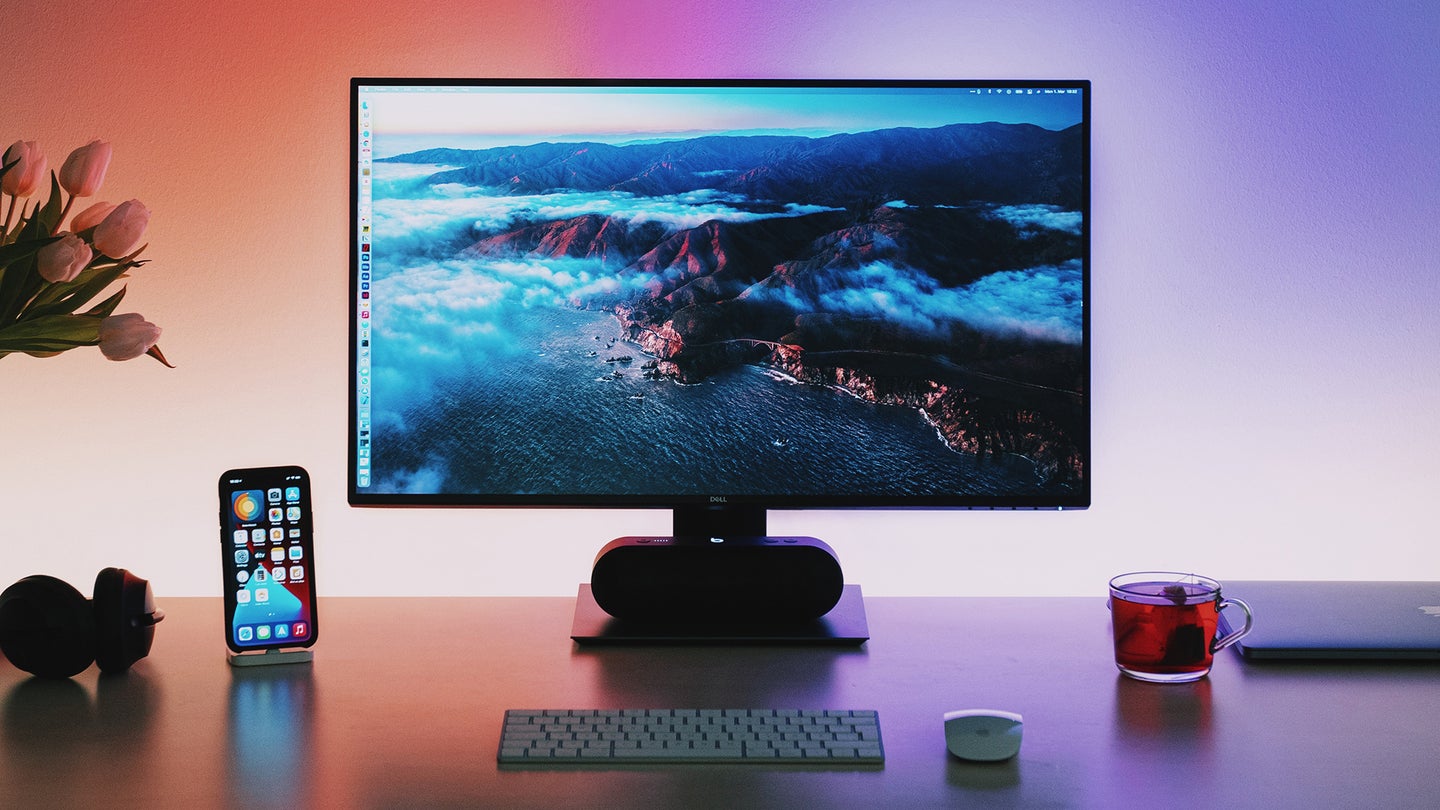 You’ll want to ensure your monitor’s colors are calibrated correctly to see everything in wondrous detail. Linus Mimietz / Unsplash
.
.
Click the link below for the article:
.
__________________________________________
 James' World 2
Leave a comment